






SleekByte 2.0 is the biggest update since launch. This release introduces a terminal integration with Claude Code, automatic per-snippet version history with inline diffs, SCSS support, and a rebuilt developer workflow. If you've ever wanted an AI coding agent that understands your WordPress snippets, this is it.
Claude Code Terminal
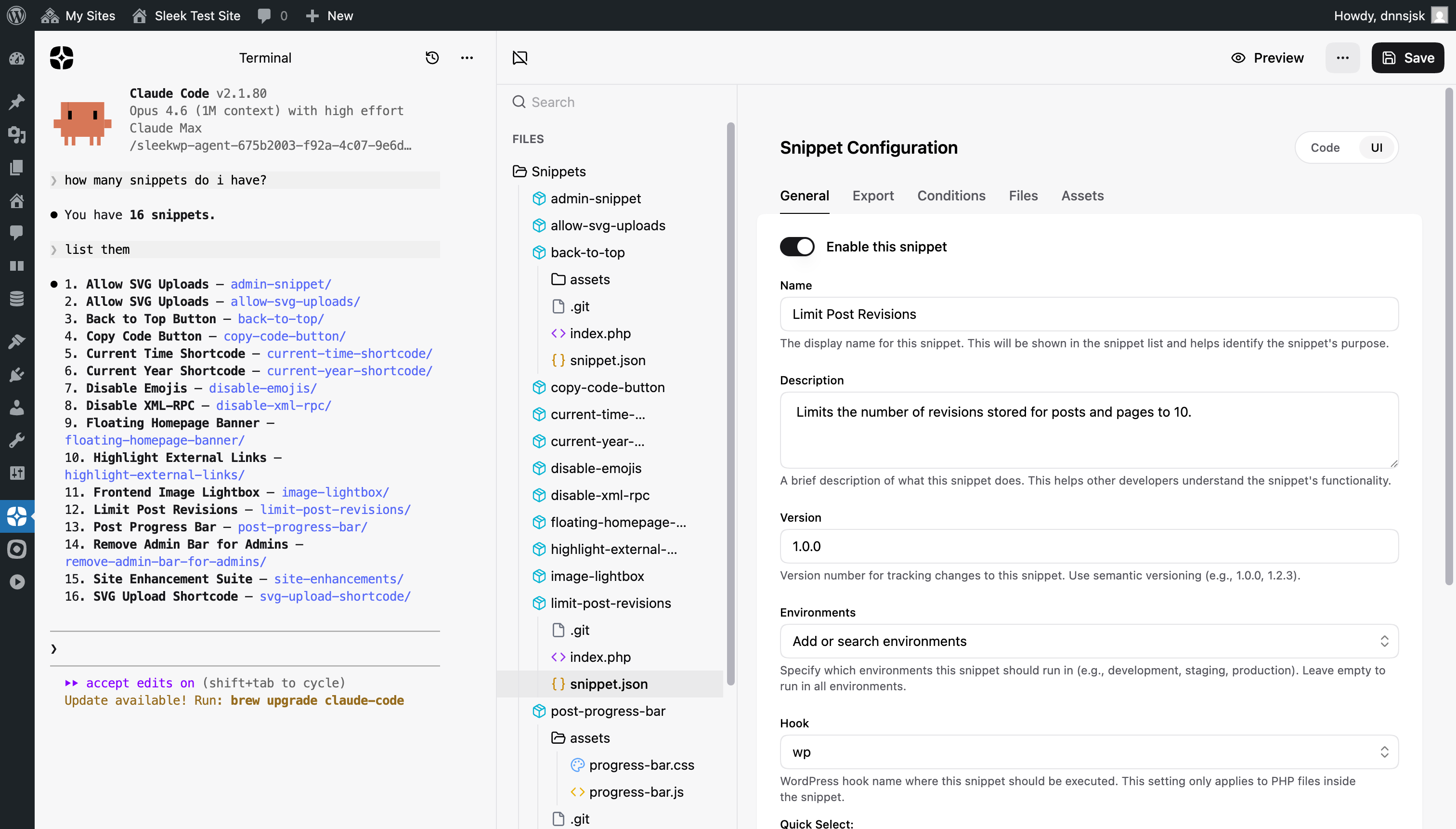
The headline feature of 2.0 is a full terminal integration with Claude Code, Anthropic's CLI for Claude. Instead of chatting through the built-in AI assistant, you can now open an interactive Claude Code session directly inside SleekByte.
How it works
The terminal runs through @sleekwp/agent, a local Node.js server you start on your machine. SleekByte connects to it via WebSocket and renders the terminal using xterm.js with WebGL rendering.
When you start a terminal session:
- Your snippet files are synced to a temporary directory
- A
CLAUDE.mdcontext file is generated with your snippet structure - Claude Code spawns in that directory with access to your files
- File changes stream back to the editor in real time
Claude Code sees your snippets as a regular project. It can read, edit, and create files. Every change appears immediately in the SleekByte file browser.
Getting started
Install and run the agent:
        npx @sleekwp/agent


                Copy
Then open SleekByte, click the menu (three dots), and select New Terminal.
The terminal connects automatically and Claude Code starts with full context
about your snippets, including a generated CLAUDE.md that describes your
snippet structure, conventions, and the snippet.json schema.
For the full architecture breakdown, setup options, file sync behavior,
session resume, and how the CLAUDE.md context works, see the
terminal documentation.
Session resume
Terminal sessions persist across page reloads. When you return to a terminal chat, Claude Code resumes the conversation where you left off. Your files are re-synced to ensure Claude always sees the latest state.
Light and dark mode
The terminal adapts to your current SleekByte theme. If you're using light mode, Claude Code switches to its light theme automatically. The theme resets to your OS preference after the session starts.
Chat history
Terminal sessions appear alongside regular AI chats in the chat history. When you have both types, each entry shows an icon to distinguish between chat conversations and terminal sessions.
Git History
When enabled, snippets track their own version history. Each save creates a git commit, giving you a complete timeline of changes with the ability to view diffs for any version.
Automatic versioning
Git history is powered by isomorphic-git
running in the browser with IndexedDB storage. When you save a snippet, the
commit happens locally and then syncs the .git directory to your WordPress
filesystem via the REST API. The result is a real git repository on disk that
you can also inspect with standard git tools.
The .git file
Each snippet folder shows a virtual .git entry in the file tree. Clicking
it opens the history viewer instead of the code editor.
History viewer
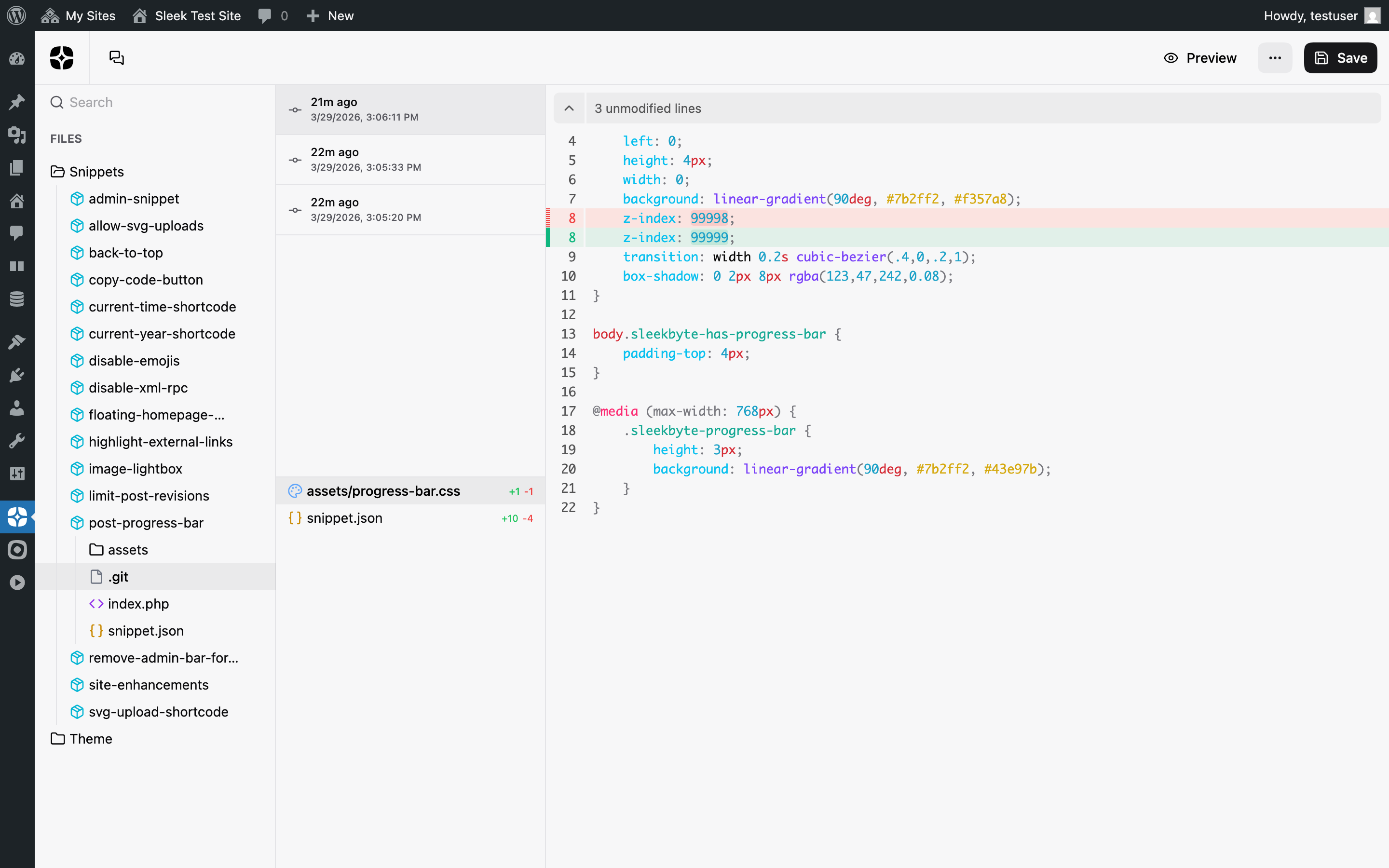
The viewer has a split layout: commits on the left, inline diff on the right.
- Commit list: Shows each save with a relative timestamp and full date. Select any commit to see what changed.
- Changed files: Lists the files modified in that specific commit with added and removed line counts. Uses the same file icons as the main file tree.
- Inline diff: Renders the diff using the same component as the file editor, with syntax highlighting and theme support.
Switching between commits is instant. If a file exists across multiple commits, it stays selected as you navigate the history.
Enabling git history
Git history requires a WordPress filter to be enabled. Add this to your theme or a mu-plugin:
        add_filter( 'sleekByte/snippets/git', '__return_true' );


                Copy
SCSS Support
Snippets can now include .scss files. SleekByte compiles them to CSS
automatically on the server using a scoped version of
scssphp. The compiled output is
enqueued just like regular CSS files.
Create a file ending in .scss inside any snippet folder. SleekByte handles
the rest. Variables, nesting, mixins, and all standard SCSS features are
supported. Files starting with _ are treated as partials and not compiled
on their own.
The compiler resolves imports from two paths: the snippet's own folder and the parent snippets directory. This means you can import SCSS partials from other snippets, creating shared design tokens or utility mixins across your entire snippet collection.
        // design-tokens/_variables.scss (shared snippet)
$primary: #2563eb;
$radius: 8px;

// my-feature/style.scss (another snippet)
@import 'design-tokens/variables';

.my-feature {
  color: $primary;
  border-radius: $radius;
}


                Copy
Search and Replace
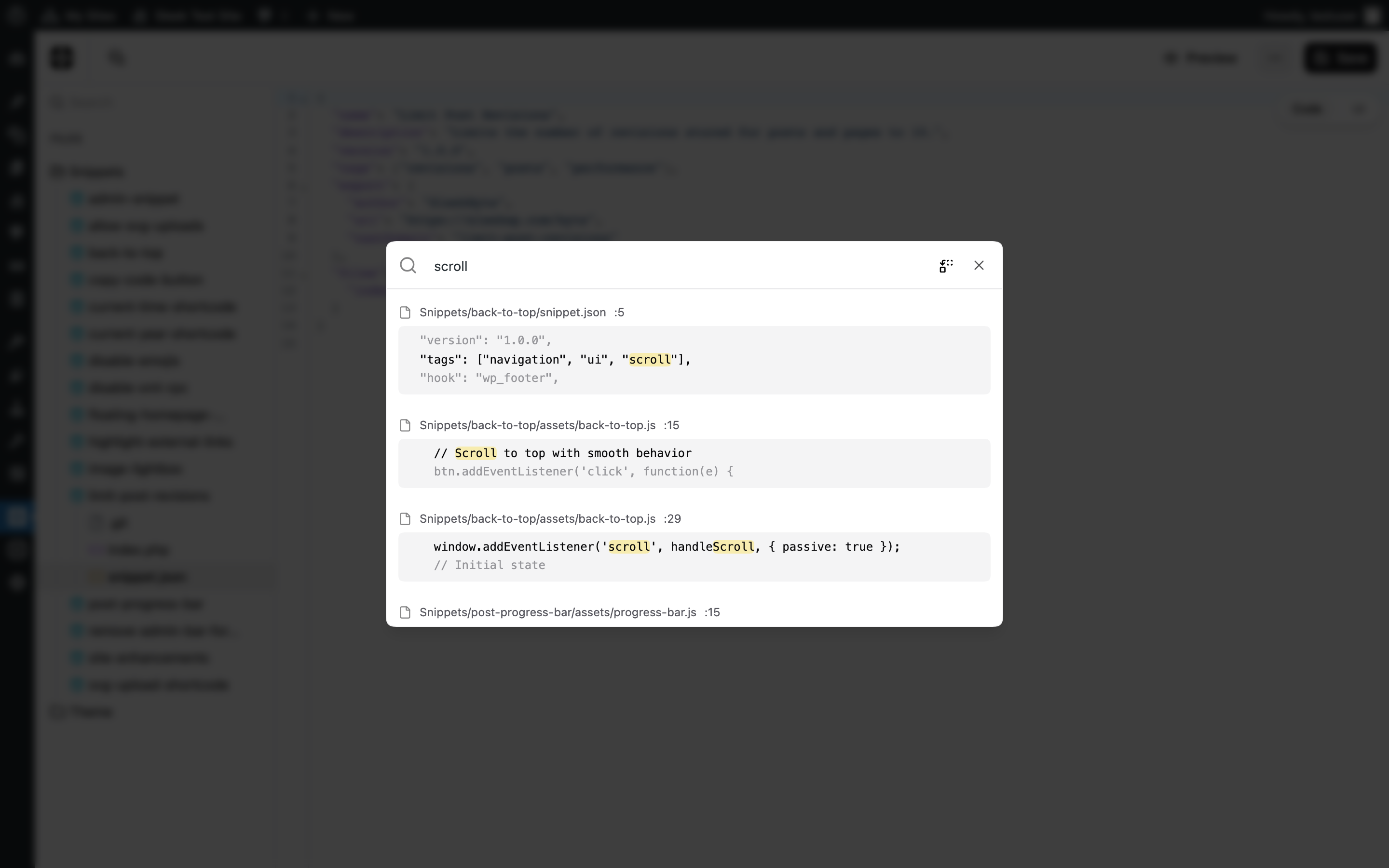
A new global search and replace panel lets you find and replace text across
all snippet files at once. Open it with Cmd+Shift+F (or Ctrl+Shift+F on
Windows/Linux).
The search uses fuzzy matching to find results across file names and content. Replace operations show a preview of changes before applying them.
Error Logging
SleekByte now tracks PHP errors on a per-snippet basis. When a snippet causes an error during execution, it's captured and associated with that specific snippet. Error logs can be viewed and cleared through the REST API.
This is especially useful for debugging snippets in production without enabling WordPress debug mode.
External Asset Downloads
External CSS and JavaScript dependencies can now be downloaded locally for self-hosting. In the assets configuration panel, click the download button next to any external asset to save a local copy. The snippet automatically switches to serving the local file instead of the CDN URL.
Backwards Compatibility
SleekByte 2.0 is fully backwards compatible. All existing snippets continue to work without changes. The new features are additive and don't affect your current workflow unless you opt in:
- Git history requires enabling the
sleekByte/snippets/gitfilter - The Claude Code terminal requires @sleekwp/agent running locally
- SCSS support, search and replace, error logging, and asset downloads work out of the box
PHP 8.2 Minimum
The one requirement change: SleekByte 2.0 requires PHP 8.2 or higher. This is needed for the SCSS compilation engine (scssphp) which relies on PHP 8.2 language features. If you're running an older PHP version, you'll need to upgrade before updating. PHP 8.2 has been the minimum recommended version by WordPress since 2024.
Upgrading
Update SleekByte through the WordPress plugin updater as usual. No migration steps are needed. Your snippets, configuration, and file structure all remain exactly as they are.