






Agent - Coding Agents
Beta Feature: Coding agents are currently in beta across supported page builders. The workflow is usable, but context files, validation, terminal history, and builder tools will continue to be refined.
Coding agents extend Agent mode with a terminal workflow for WordPress page builders. The first supported workflow is Claude Code, which works well with files, search, diffs, and multi-step edits.
The terminal workflow needs a local bridge. Start the SleekWP agent server on
your machine with npx @sleekwp/agent before opening a coding-agent terminal in
SleekAI.
Overview
Unlike a standard chat-only assistant, coding agents use a mirrored page workspace. Supported builder integrations expose the current page as structured files that the coding agent can inspect and edit.
The workspace is a per-element file tree plus the schemas, global styles, and editing rules the agent needs. For Bricks the shape looks roughly like:
elements/{order}__{id}/element.jsonfor each element's settingselements/{order}__{id}/custom.cssfor element-specific custom CSSelements/{order}__{id}/custom.{breakpoint}.cssfor responsive CSSschema/elements/{name}.jsonfor element settings schemasstyles/page.css,styles/global.css, andstyles/global-classes/{className}__{classId}/CLAUDE.mdwith builder-specific editing rules.mcp.jsonregistering thesleekwpMCP server
Elementor, Breakdance, and Beaver Builder ship analogous shapes. Beaver, for
example, uses nodes/ instead of elements/ and stores rendered HTML alongside
each node.
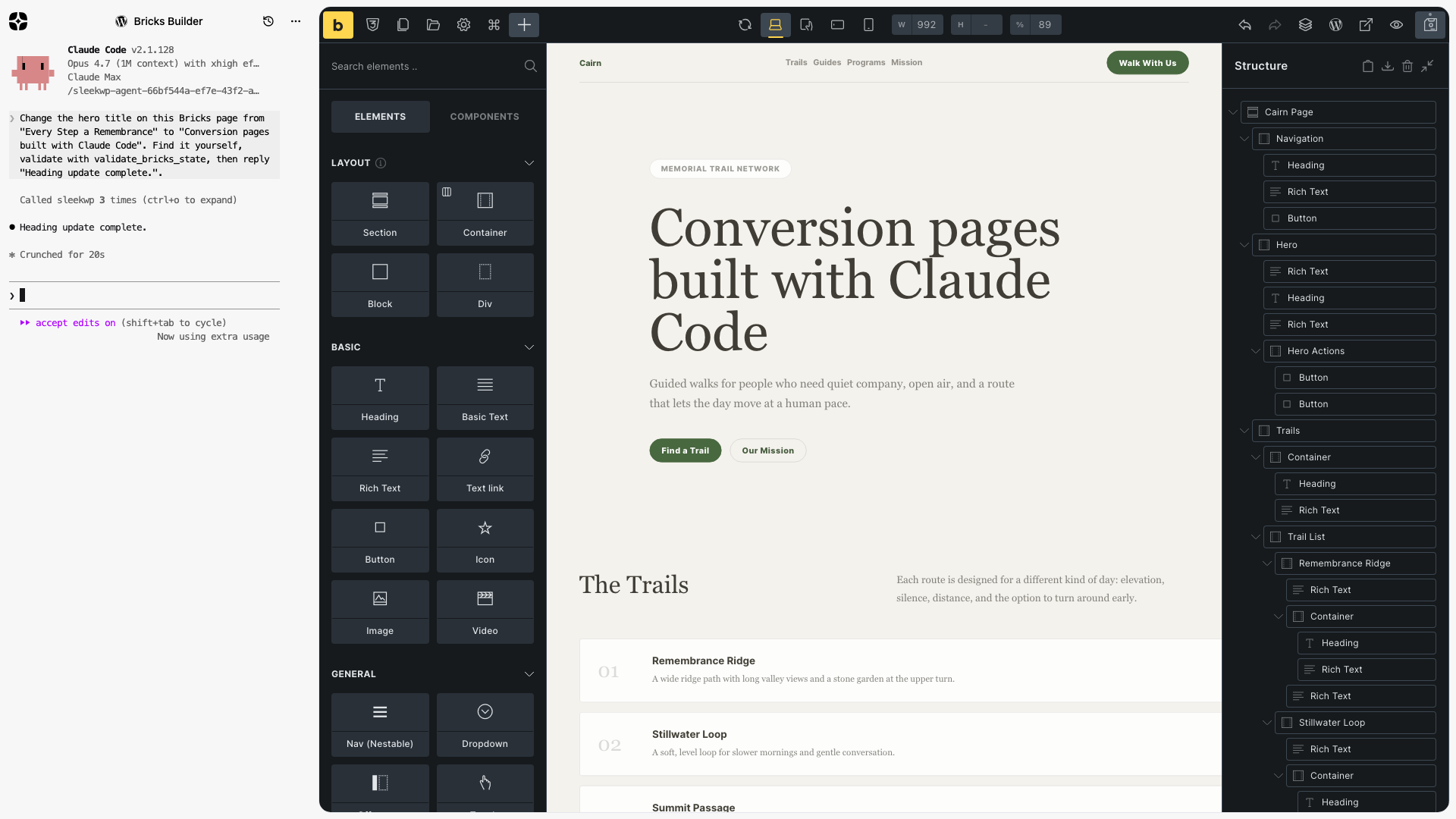
The visual builder remains the place where you review the result. The mirrored files give the agent a structured way to understand and change the page.
Why Files Matter
Coding agents work best when they can navigate a file-based workspace. They can search for a headline, inspect the surrounding section, understand which element owns the style, edit exact data, and keep track of the task over multiple steps.
Without a mirrored workspace, the agent usually has to infer too much from visual context, DOM state, or a short prompt. With a mirrored workspace, it can work from structured WordPress and builder data.
MCP and Coding Agents
SleekAI does not work around MCP. It uses MCP, but inside the editor instead of
behind it. When the coding-agent session starts, the agent writes a normal
.mcp.json into the workspace registering a local server named sleekwp. Claude
Code launches with that config and the mcp__sleekwp__* namespace on its
permission allowlist.
Each builder integration registers its own set of tools (Bricks ships fifty-plus, Elementor ships its own, and so on). Calls travel from Claude Code through the local agent's MCP stdio bridge, over the WebSocket to the browser, and finally to the live builder runtime. Results stream back the same way.
This is the important distinction from a typical backend MCP server: the tool calls touch the open editor, not a server-side endpoint that has not seen your unsaved state. Refreshing or reconciling state is not part of the workflow.
WebMCP is exploring the same direction at the standards layer: web apps exposing tools from the loaded page so users and agents share context. SleekAI applies the principle to WordPress page builders today.
Supported Builders
Coding agents are currently available as a beta for:
- Bricks
- Elementor
- Breakdance
- Beaver Builder
Each builder has its own integration because each builder stores page structure, settings, CSS, and save state differently.
Requirements
- Claude Code CLI installed and authenticated on your machine
- Node.js 20 or higher
- @sleekwp/agent running locally
- A supported builder page open in WordPress
Claude Code uses its own authentication and billing. SleekAI does not provide Claude Code access through the OpenAI, Anthropic, Google, or OpenRouter keys you configure for normal SleekAI chat features.
Setup
Start the local bridge before opening the terminal in SleekAI:
        npx @sleekwp/agent


                Copy
The agent starts a WebSocket server on ws://localhost:5733. SleekAI connects to
that local server, sends the current builder workspace to it, and receives file
changes and terminal output back from it. If the bridge is not running, the
terminal option is not available.
You can also install it globally:
        npm install -g @sleekwp/agent
sleekwp-agent


                Copy
How the Workflow Works
The typical workflow works like this:
- Start the local bridge with
npx @sleekwp/agent. - Open a supported page builder.
- Launch SleekAI Agent mode.
- Start the coding-agent terminal session.
- SleekAI mirrors the current page into files and registers the
sleekwpMCP server. - Claude Code launches with
--permission-mode acceptEditsand themcp__sleekwp__*allowlist. - The agent searches the workspace, reads schemas, and calls builder runtime tools as needed.
- SleekAI validates and applies the resulting changes through the active builder.
- You review the result in the visual editor. Reloading the builder resumes the same session via
--continue.
What the Agent Can See
The agent has two parallel surfaces: the mirrored workspace and the per-builder MCP tools.
Mirrored Workspace
The file tree gives the agent a structured way to inspect and edit the page. Useful files include:
- Element data:
elements/{order}__{id}/element.jsoncarries each element's settings, parent, children, and label. - Element CSS:
elements/{order}__{id}/custom.cssandcustom.{breakpoint}.cssmap to the matching builder source field. - Schemas:
schema/elements/{name}.jsonlists valid setting names and defaults for each element type. - Global styles:
styles/page.css,styles/global.css, andstyles/global-classes/{className}__{classId}/cover page and global CSS. - Editing rules:
CLAUDE.mdis loaded as the project's claude-md and tells the agent which tools to prefer and which fields to leave alone.
Builder Runtime Tools
The sleekwp MCP server exposes tools the agent calls instead of editing files
directly when the operation needs to run against the live builder. Examples
(Bricks shown):
- Inspect:
get_page_structure,get_selected_element,get_element_tree,find_elements_by_text,find_elements_by_type - Edit:
update_element_settings,set_element_text,set_custom_css,set_element_classes - Build:
create_element,move_element,duplicate_element,delete_element - Save and validate:
validate_bricks_state,save_page,save_global_settings,list_css_sources
Elementor exposes its own equivalents (add_container, add_widget,
validate_elementor_state, and so on). Breakdance and Beaver Builder ship
analogous sets.
Local Agent Server
@sleekwp/agent runs locally. It creates a temporary workspace, writes the
mirrored builder files into that workspace, spawns Claude Code with
--permission-mode acceptEdits, streams terminal output to the browser, watches
file changes, and sends those changes back to SleekAI.
The temporary workspace is not the live WordPress theme or plugin directory. The builder integration decides what becomes a file, validates the result, and then applies supported changes back to the active builder state.
When the coding-agent session detaches (you close the terminal panel or reload
the builder), the workspace is kept on disk. Reconnecting starts Claude Code
with --continue, so the same conversation resumes without losing context.
Destroying the session removes the temporary workspace.
Privacy and Local Workflow
The bridge, the temporary workspace, and the streaming of file changes all run
on your machine. The browser connects to the local bridge over
ws://localhost:5733, and the bridge spawns a local Claude Code process. No
external SleekAI server sits between them.
Claude Code uses its own connection to its model provider for the LLM calls themselves. That traffic is governed by your Claude Code authentication, your subscription or API plan, and Anthropic's terms. The OpenAI, Anthropic, Google, or OpenRouter keys you configure elsewhere in SleekAI are not used for Claude Code calls.
What Beta Means
Coding agents are available now, but they are not final. During the beta, expect continued improvements to:
- File naming and workspace structure
- CSS and design-context coverage
- Builder-specific validation
- Terminal history and builder feedback
- Save reliability across more edge cases
- Local agent startup and reconnection behavior
When to Use Coding Agents
Coding agents are best for changes that benefit from structured page context:
- Reworking a landing page section
- Adding testimonials, FAQs, pricing blocks, or CTAs
- Updating repeated copy across a page
- Cleaning up responsive spacing
- Matching button and card styles
- Adjusting CSS while preserving builder state
For simple writing, normal Chat or Agent mode may be enough. Use coding agents when the task crosses page structure, content, styling, and builder save logic.