






SleekPixel for Microsoft Excel sheets
Most teams still live in Excel. SleekPixel reads rows imported from Excel into WordPress and renders branded LinkedIn-sized cards per row, so quarterly numbers and pipeline updates ship as proper PNGs instead of cropped spreadsheet captures.
♾️ Lifetime License available
The numbers are in Excel, the share is a screenshot
Excel is still where the actual numbers live for most operations, finance and revenue teams. Pipeline trackers, monthly KPIs, quarterly forecasts, budget actuals, hiring plans, all of it sits in xlsx files passed through SharePoint or OneDrive. The moment a number needs to leave the spreadsheet, the workflow breaks. Someone opens the file, zooms to the right cell range, takes a screenshot, crops it in Preview and pastes it into a LinkedIn post or a Slack thread.
The screenshot is jagged, the column widths are wrong for the image dimensions, the brand is nowhere on the card, and the post that should have looked like a confident update looks like a quick capture from a cluttered file. Multiply that across weekly updates, monthly board posts and quarterly recaps and the brand impression of the operations team becomes scrappy by accident.
SleekPixel sits on the WordPress side of an Excel-to-WordPress sync (CSV import, Power Automate, dedicated importer plugins). Each row imported from the sheet becomes a custom post with the same fields. SleekPixel reads those fields and renders a LinkedIn-sized 1200 by 627 card per row, with title, subtitle, the headline number and a brand mark. Pipeline posts, KPI updates and forecast notes leave WordPress as branded images that match the rest of the marketing surface.
Workflow
From Excel row to branded LinkedIn card
Sync Excel into WordPress
Build the row template
Trigger renders on save
Share from WordPress, not Excel
Output
What ships for every Excel row
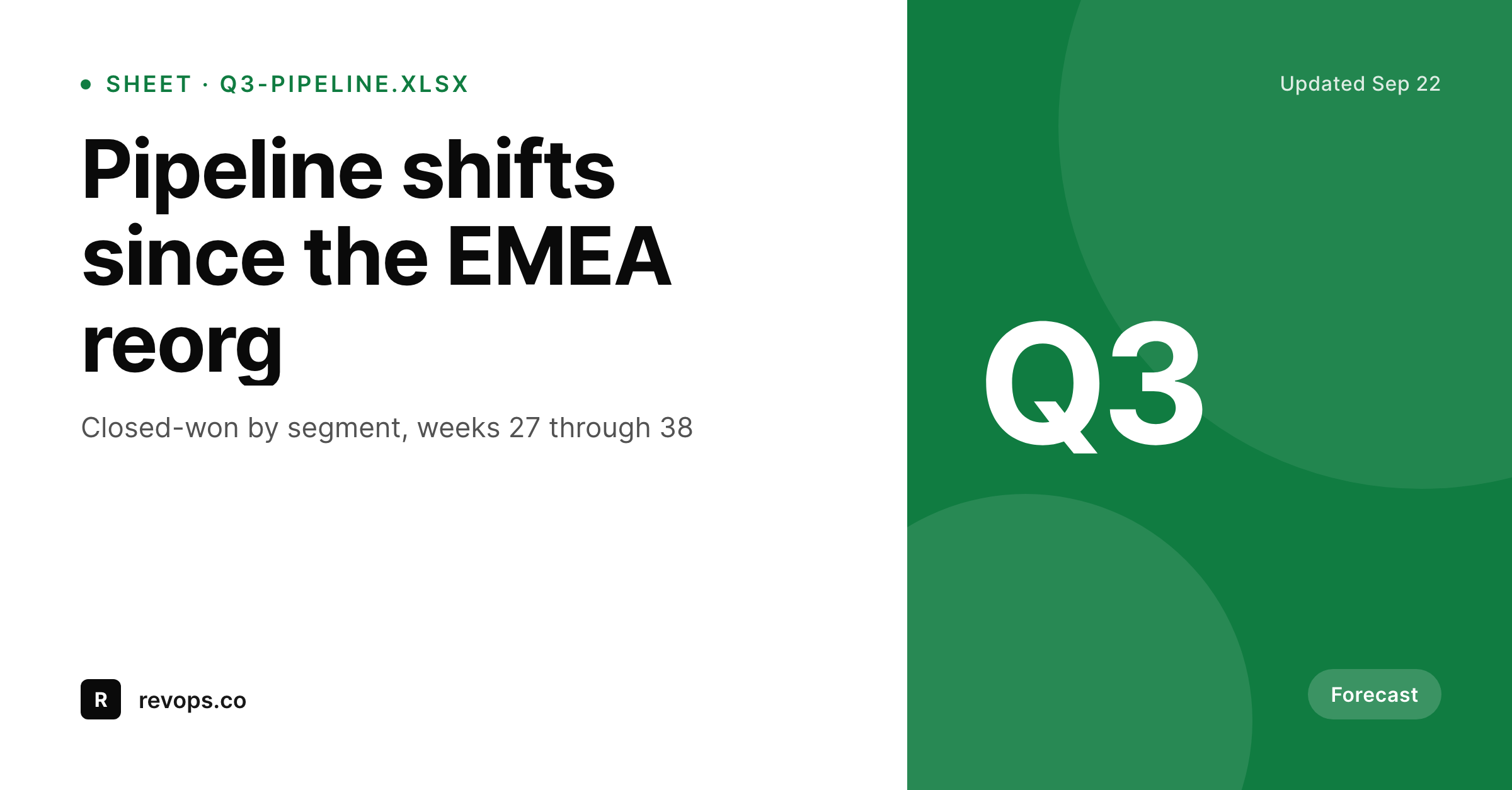
A 1200 by 627 LinkedIn-ready PNG: row title, subtitle, headline metric and brand wordmark, rendered from the fields imported from the Excel sheet.
Comparison
Cropped Excel screenshot vs SleekPixel card
Excel screenshot
- Cropped sheet screenshots look jagged on retina LinkedIn feeds
- Column widths never line up with the image dimensions the post needs
- Brand colors and logo are absent from the captured image
- Updating a number means a fresh screenshot and a fresh crop session
- Stale screenshots stay in old posts even after the Excel file is corrected
SleekPixel
- Reads WordPress fields imported from Excel rows (CSV, Power Automate, etc.)
- Per-row 1200 by 627 PNG sized for LinkedIn and most blog covers
- Headline metric, period and category bind cleanly to slots
- Bulk re-render when the brand template changes
- Numbers and labels stay in sync with the source row
Features
What SleekPixel gives you for Microsoft Excel sheets
Row-aware templates
Each imported row becomes a post; each post renders a card. The template references row fields, so the card shows the same numbers as the spreadsheet.
Headline metric slot
The card has a dedicated large slot for one metric (revenue, growth %, closed deals) so the post reads at the speed a LinkedIn feed scrolls.
Re-renders on update
When the row updates from the next Excel sync, the post field updates and the card re-renders. Old shares already on LinkedIn keep their old card; new shares pick up the new one.
Use cases
Who shares Excel rows as branded cards
Revenue operations
Weekly pipeline movement posts, with closed-won and pipeline-added rendered onto a branded card instead of a sheet crop.
Finance updates
Monthly KPI snapshots and quarterly board summaries ship as proper images, with the headline number where the eye lands first.
Hiring plans
Recruiting teams share weekly funnel updates from a roles spreadsheet, with each role's progress rendered into a small card.
The bigger picture
Why operations posts deserve a real card
Operations and finance teams produce some of the most credible content a company ships, but it usually leaves the building as a screenshot of someone's spreadsheet. The numbers are right, the framing is right, the visual is wrong, and a LinkedIn audience that scrolls past a jagged Excel crop never engages with the post the same way it would have engaged with a clean branded card. Across a year of weekly updates, that compounding presentation gap matters.
SleekPixel does not replace Excel and does not pretend to. The spreadsheet stays where the finance team controls it. The bridge is a WordPress import: each row becomes a post, and the post is where the brand layer attaches.
The card renders from the row's data, so when the number changes in the spreadsheet and gets re-imported, the next render reflects it. Teams stop choosing between credibility (the real Excel file) and presentation (a designed card) and start getting both from the same data flow. The hours that used to go into weekly screenshot rituals go back into the analysis work that drove the numbers in the first place.
Questions
Common questions about SleekPixel for Microsoft Excel sheets
No. SleekPixel reads WordPress post fields. Getting Excel data into WordPress is a separate step, handled by CSV import, Power Automate, dedicated Excel importer plugins, or a small custom script. Once rows are posts, SleekPixel binds to the fields and renders cards.
Power Automate works for teams already on Microsoft 365 because it can push rows into WordPress via the REST API. Plugins like WP All Import handle CSV exports of a sheet on a schedule. For high-volume cases, a small Node or PHP script reading the Microsoft Graph API is the most flexible.
Yes. The template can compute simple values from the post fields (growth percentage, delta from last period) at render time. For more complex calculations, do the math in Excel before the sync so the post carries the final number.
As fresh as the sync schedule. A daily Power Automate flow keeps cards within 24 hours of the sheet. An on-demand trigger keeps them within minutes. SleekPixel re-renders on every post save, so the bottleneck is the sync cadence, not the rendering.
Templates can apply conditional styles: a status field of 'at risk' colors the card red, 'on track' colors it green. This mirrors Excel conditional formatting at the card level, though more complex per-cell rules need to be flattened into a status field first.
SleekPixel does not embed Excel charts directly. The recommended pattern is to compute the chart data in Excel, sync the resulting series to WordPress, and use a chart slot in the template (Chart.js or similar) that draws from the post fields. The chart on the card ends up matching the spreadsheet's chart visually.
Yes, through the same pipeline. Power Automate authenticates to SharePoint, reads the sheet on a schedule and pushes rows to the WordPress REST API. The plugin only sees WordPress posts, so the source storage of the spreadsheet does not affect rendering.
Not through SleekPixel. The plugin renders images server-side on your WordPress install. Whether a row should be published as a public card is up to your workflow: most teams render private cards for internal channels and only publish the rolled-up summary card externally.
Pricing
More than 1000+
happy customers
Explore our flexible licensing options tailored to your needs. Upgrade your license anytime to access more features, or opt for a lifetime license for ongoing value, including lifetime updates and lifetime support. Our hassle-free upgrade process ensures that our platform can grow with you, starting from whichever plan you choose.
Lifetime ♾️
Most popular
EUR
once
- Unlimited websites
- Lifetime updates
- Lifetime support
...or get the Bundle Deal
and save €250 🎁
💎 Want everything forever? The All Access Pass is going away on 01.08.2026.
The Bundle (unlimited sites)
Pay once, own it forever
Elevate your WordPress site with our exclusive plugin bundle that includes all of our premium plugins in one package. Enjoy lifetime updates and lifetime support. Save significantly compared to buying plugins individually.
What’s included
-
SleekAI
-
SleekByte
-
SleekMotion
-
SleekPixel
-
SleekRank
-
SleekView
€749
Continue to checkoutBrowse more
- Pinterest Idea Pins
- Bandcamp release cover
- Kick channel banners
- Twitter header banners
- SoundCloud banner
- Shopify collection banners
- TikTok Now image
- WhatsApp status images
- YouTube Shorts covers
- Bluesky feed banner
- LinkedIn carousel slides
- Notion page covers
- Snapchat Spotlight covers
- Vimeo channel banners
- Gumroad product covers