






SleekPixel for Sensei LMS
Sensei LMS organises courses into modules and lessons with instructor assignment per course. SleekPixel reads those fields on save and renders a share image with course title, module count, and instructor, so a forwarded link previews as a real course rather than a generic site banner.
♾️ Lifetime License available
Sensei catalogs need visuals at every level
Sensei LMS structures content into courses, modules, and lessons. Each course post carries a title, an instructor, a module taxonomy, a lesson count, and often a featured image. The course catalog page on most Sensei sites renders all of this clearly, with the standard WooCommerce-style product card on hover. The share preview, on the other hand, falls back to the theme or SEO plugin default. A learner forwarding a course link to a peer gets a site banner that gives no signal that this is a course, let alone which course.
The pattern is the same one that affects every WordPress LMS: graphics are a separate task that competes with the actual teaching work. The instructor records the lessons, builds the assessments, manages the students, and the graphics layer gets attention at launch and then never again. Six months in, the Sensei catalog has fifteen courses and four branded thumbnails. New courses share blank, lesson links share blank, module overview pages share blank.
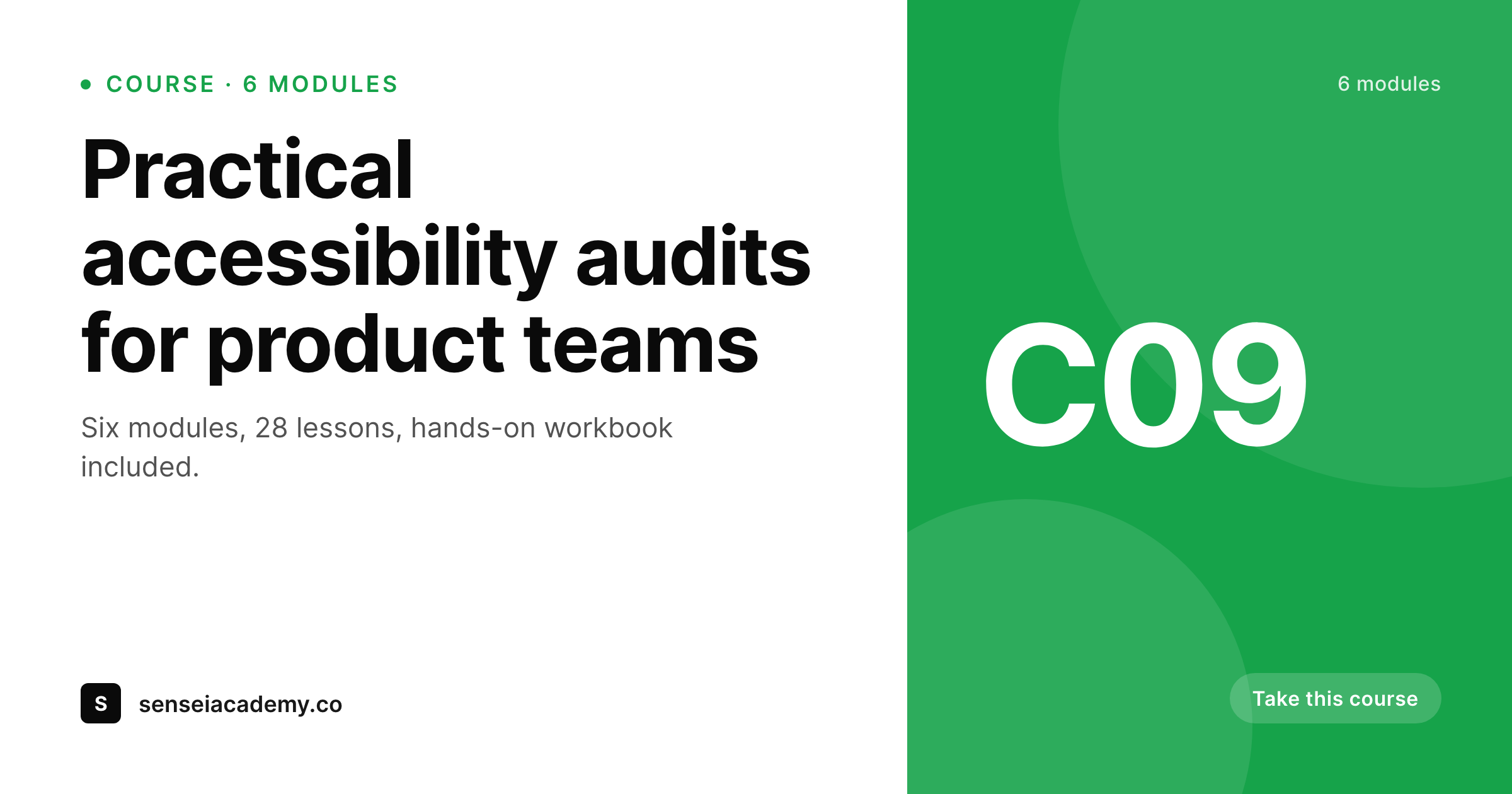
SleekPixel reads Sensei LMS post fields and composes a card that names the course, instructor, and module count on save. 'Six modules, 28 lessons' renders into the OG image alongside the instructor's name and avatar. The image saves to uploads as a real PNG and og:image points at it. New courses added later get the same card automatically. Affiliate shares and learner referrals all unfurl with branded previews, because rendering is bound to the save event rather than to a designer's queue.
Workflow
From Sensei course to branded card
Build Sensei templates
Bind Sensei fields
Save a course
Distribute the catalog
Output
What gets generated per Sensei course
A 1200 by 630 OG card with course title, instructor name, module count, lesson count, and brand mark, rendered on save and saved to uploads as a real PNG.
Comparison
Site fallback versus SleekPixel
Default theme OG image
- Course share previews show the site banner with no course identity
- Module overview page shares have no module count or topic visible
- Lesson page links unfurl with no course or module context
- Instructor profile shares carry no name or avatar in the preview
- Catalog rebrands force redoing every course graphic by hand
SleekPixel
- Reads Sensei LMS post fields: course, lesson, module taxonomy, instructor
- Cards show module and lesson count from course meta automatically
- Instructor name and avatar pull from the assigned WordPress user
- Regenerates on save: course updates flow to share cards
- Bulk regenerate covers an entire catalog after a brand refresh
Features
What SleekPixel gives you for Sensei LMS
Course-aware
Reads the Sensei course, lesson, and module taxonomy. Each card composes title, module count, and lesson count from data already on the post.
Instructor faces
Instructor headshot from the user profile slots into every course card. Multi-instructor catalogs show the right face on each course.
Module structure
Sensei's module taxonomy drives a 'six modules' label or a per-module overview card. Learners see the curriculum scale before the click.
Use cases
What Sensei catalogs generate with SleekPixel
Course landing pages
Each course shares with a card showing title, instructor, and module count. Affiliate links and email pushes open with branded previews.
Lesson pages
Each lesson page renders a thumbnail used as the OG image. Forwarded links keep the course context and lesson title intact.
Module overview pages
Module landing pages render with the module title, parent course, and lesson count. Shared deep links into specific modules carry their own context.
The bigger picture
Why module structure should be visible on shared links
Sensei LMS catalogs grow through organic search, affiliate referrals, and learner-led referrals. Each of those pathways depends on what a prospective learner sees in the first three seconds of clicking a link. A Sensei course landing page that shares with a card showing title, instructor, and module count converts better than one that shares with a generic site banner, because the prospective learner can answer two basic questions (what is this and how big is the commitment) before they decide to click.
The module count specifically is a signal Sensei makes prominent in its UI but loses in the share preview by default. A six-module course is a different commitment from a two-module course, and surfacing that on the card lets the prospect self-select. The second angle is internal navigation.
Existing learners often share specific module overview pages with peers, and those module shares only carry meaning if the preview shows which module of which course. SleekPixel reads the module taxonomy and renders the parent course and module title together, which means a deep link into 'Module 3 of Practical Accessibility Audits' previews as exactly that, not as a generic site banner. The hours saved across the catalog go back into curriculum development, and the conversion path from share to enrollment becomes shorter without any per-course graphics work.
Questions
Common questions about SleekPixel for Sensei LMS
Yes. Sensei Pro adds quizzes, certificates, course access groups, and additional meta, all of which live on the standard course and lesson posts. SleekPixel reads any meta key, so Pro features can render onto the card if the template is configured for them.
Yes. Sensei's module taxonomy is attached to courses, and the template can count assigned modules and render 'Six modules' or 'Six modules, 28 lessons' alongside other course data. The count updates automatically when modules are added.
Yes. The block editor writes to the same post types and meta keys as the classic editor. Whether an instructor edits the course as blocks or as a classic post, saving triggers the SleekPixel render the same way.
Quiz and lesson posts can have their own templates. A quiz card might show the quiz title, course, and number of questions, and a lesson preview card might show the lesson within its module. Both render from data already on the post.
Yes. A certificate template can read the learner's name, course title, and completion date and render a personal card the learner can share. Drives word-of-mouth: learners post their completion publicly, which doubles as marketing for the catalog.
Yes. When a course is sold through WooCommerce via Sensei's WooCommerce integration, the price meta lives on the linked product. The template can read either the course post or the linked product, depending on whether the merchant wants to show price on the share card.
Renders happen on save, not on page load. Learners browsing the catalog hit cached PNGs. Even sites with thousands of lessons run smoothly because each lesson only re-renders when its post is updated. The bulk regenerate command is the heaviest operation and runs once per template change.
Yes. The bulk regenerate command walks every course, lesson, and module and rebuilds each card. After a logo update or a typography refresh, one command updates the entire catalog without manual edits.
Pricing
More than 1000+
happy customers
Explore our flexible licensing options tailored to your needs. Upgrade your license anytime to access more features, or opt for a lifetime license for ongoing value, including lifetime updates and lifetime support. Our hassle-free upgrade process ensures that our platform can grow with you, starting from whichever plan you choose.
Lifetime ♾️
Most popular
EUR
once
- Unlimited websites
- Lifetime updates
- Lifetime support
...or get the Bundle Deal
and save €250 🎁
💎 Want everything forever? The All Access Pass is going away on 01.08.2026.
The Bundle (unlimited sites)
Pay once, own it forever
Elevate your WordPress site with our exclusive plugin bundle that includes all of our premium plugins in one package. Enjoy lifetime updates and lifetime support. Save significantly compared to buying plugins individually.
What’s included
-
SleekAI
-
SleekByte
-
SleekMotion
-
SleekPixel
-
SleekRank
-
SleekView
€749
Continue to checkoutBrowse more
- Dribbble shot covers
- Snapchat ad images
- Facebook Shop product images
- Ko-fi shop images
- Open Graph images
- Bluesky link cards
- X ad images
- Bluesky profile banners
- Tidal cover art
- Threads post cover
- Kindle book cover
- Spotify playlist cover
- Buy Me a Coffee banners
- eBay listing images
- Amazon A+ content images