






SleekPixel for Twitch schedule banners
Templated 1920x480 schedule art generated from a WordPress show post each week. Day, time, game, and guest pulled from real fields, downloaded from the editor sidebar, ready for the Twitch profile banner slot.
♾️ Lifetime License available
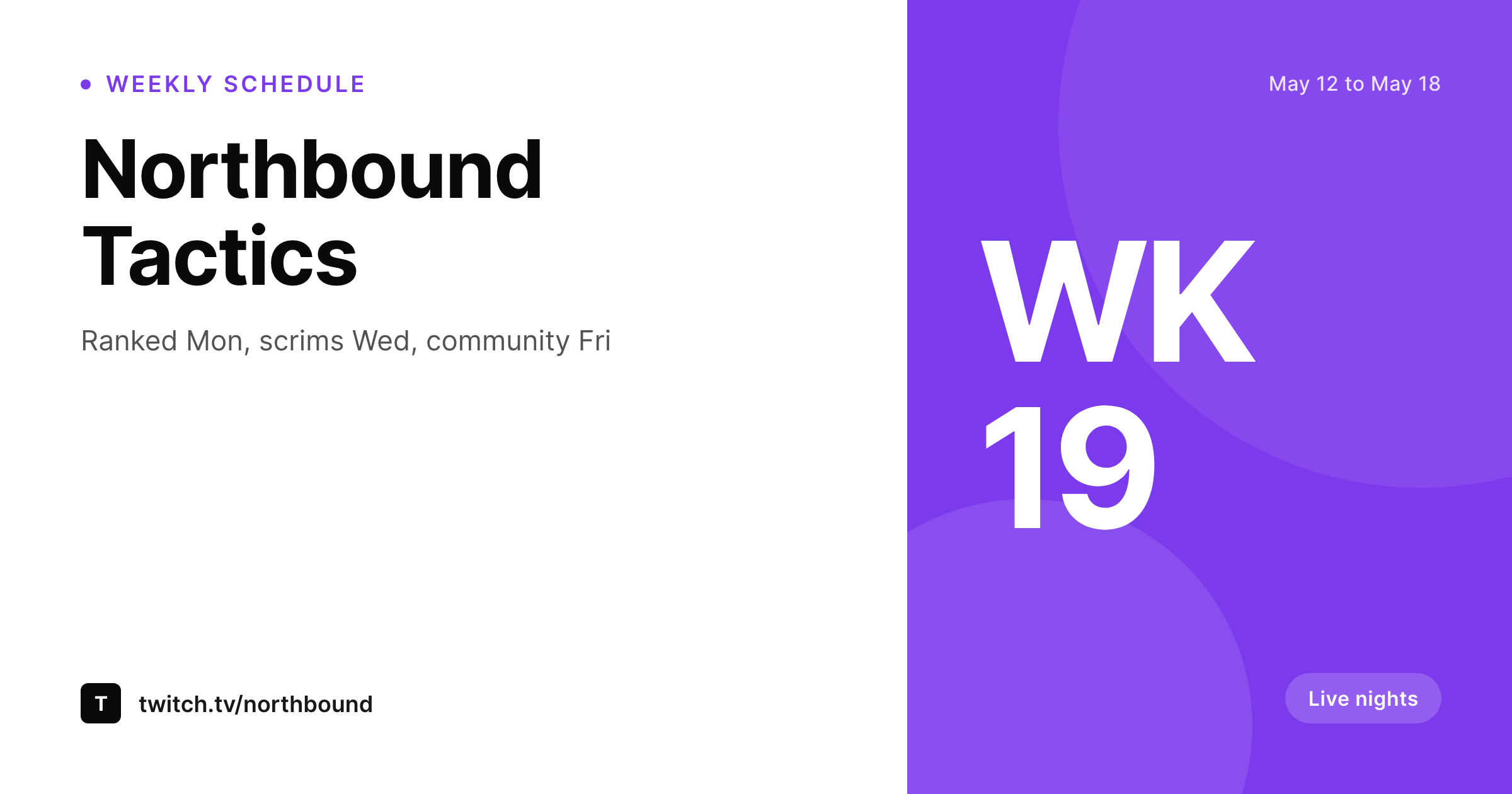
Schedule banners are the only weekly surface most streamers update
A Twitch profile banner is the strip of art at the top of a channel page. Streamers who actually keep a schedule use that strip to advertise which days, which times, and which games. The catch is that a weekly schedule banner is a weekly design job, and most streamers either skip it or post the same banner for six months while the schedule itself drifts away from what the banner claims.
SleekPixel binds the banner to a WordPress post. One post per week, with fields for each day's title, time, game, and guest. The template renders a 1920x480 PNG on save, with the week number, the date range, and the day grid laid out on a brand background. Schedule changes mid-week (canceling a Wednesday, swapping a guest) become field edits, not Photoshop sessions.
Twitch does not allow third-party uploads to the profile banner, so SleekPixel exposes a download button in the editor sidebar. The PNG sits in uploads named for the week, ready to drop into the Twitch creator dashboard.
Workflow
From schedule post to Twitch profile
Design the schedule template
Set up a schedule post type
Save the weekly post
Upload to Twitch
Output
What gets rendered per week
A 1920x480 PNG with the week range, day grid, times, and games rendered from the schedule post.
Comparison
Manual schedule banners versus SleekPixel
Photoshop or Canva each week
- Weekly banner refresh skipped after the first month of streaming
- Posted schedule drifts away from what the streamer actually goes live with
- Day cancellations never make it back to the banner
- Source file lives on one machine and disappears when the streamer rebrands
- Brand colors and fonts drift week to week with each Canva edit
SleekPixel
- 1920x480 PNG rendered per weekly schedule post on save
- Day, time, game, and guest pulled from real post fields
- Week number and date range computed from the post date
- Sidebar download per post, ready for Twitch dashboard upload
- Brand fonts and colors locked to a single template family
Features
What SleekPixel gives you for Twitch schedule banners
Schedule-shaped
The template uses a day grid sized for the 1920x480 Twitch profile banner. Times and games sit in the same slots every week so the eye learns the layout.
Week-aware
The week number and date range render from the post date, so a new schedule post automatically reads with the right week.
Mid-week edits
A canceled Wednesday or a guest swap is a field edit. The banner re-renders on save and reflects the change before the next stream.
Use cases
Where weekly schedule banners pay off
Variety streamers
A variety channel that rotates games each night uses the banner to set expectations for that week's run.
Co-stream nights
Guest co-streams render with the guest handle in the right day slot, so followers know who is joining when.
Tournament weeks
Tournament or event weeks render with the bracket time and game slotted in, instead of a generic banner that says nothing about the event.
The bigger picture
Why a current schedule banner moves Twitch follow-throughs
Twitch viewers decide whether to follow a channel partly by how predictable the channel looks. A profile banner that shows this week's specific schedule signals that the streamer ships consistently, which is the single best predictor of return viewers. A stale banner with last quarter's schedule signals the opposite.
Most streamers know this and still post stale banners because the weekly Photoshop tax is high. SleekPixel collapses that tax. The schedule lives as a post.
The template renders on save. Mid-week edits propagate to the banner the same day. The follow rate moves because the profile finally reads like a channel with a schedule instead of a channel with old art.
Questions
Common questions about SleekPixel for Twitch schedule banners
No. Twitch does not allow third-party uploads to the profile banner. SleekPixel renders the PNG and exposes a download button in the editor sidebar. The streamer uploads via the Twitch creator dashboard.
1920x480 by default, which matches Twitch's profile banner spec. The dimension is configurable in the template if Twitch updates the recommendation.
Yes. The template can use any grid, from a single day to a full seven-day strip. Hidden days collapse so the layout stays readable when fewer days are scheduled.
The week number and date range compute from the post date. Saving a post dated May 12 fills the banner with the right week range automatically.
Yes. Each day field includes optional guest text, which renders next to the day title in the banner.
Yes, including self-hosted brand fonts. Reference the font in template CSS or upload it through the SleekPixel editor.
Edit the day field on the schedule post and save. The banner re-renders with the canceled day marked, and the file in uploads updates immediately.
In the WordPress uploads directory as real PNGs. They appear in the media library and are included in normal backups.
Pricing
More than 1000+
happy customers
Explore our flexible licensing options tailored to your needs. Upgrade your license anytime to access more features, or opt for a lifetime license for ongoing value, including lifetime updates and lifetime support. Our hassle-free upgrade process ensures that our platform can grow with you, starting from whichever plan you choose.
Lifetime ♾️
Most popular
EUR
once
- Unlimited websites
- Lifetime updates
- Lifetime support
...or get the Bundle Deal
and save €250 🎁
💎 Want everything forever? The All Access Pass is going away on 01.08.2026.
The Bundle (unlimited sites)
Pay once, own it forever
Elevate your WordPress site with our exclusive plugin bundle that includes all of our premium plugins in one package. Enjoy lifetime updates and lifetime support. Save significantly compared to buying plugins individually.
What’s included
-
SleekAI
-
SleekByte
-
SleekMotion
-
SleekPixel
-
SleekRank
-
SleekView
€749
Continue to checkoutBrowse more
- office opening card
- track release cards
- referral program cards
- patch note cards
- session recap cards
- release note cards
- survey result card
- LinkedIn update cards
- lifetime deal card
- experiment recap card
- template download card
- award win card
- ISO certification card
- compliance update cards
- Twitter thread card
- Open Graph images
- KDP hardcover cover
- Bluesky link cards
- YouTube channel banners
- Amazon A+ content images
- Facebook ad images
- VK community cover photos
- LinkedIn showcase page banners
- X ad images
- Weibo post images
- Buy Me a Coffee banners
- Twitch stream overlay images
- YouTube Music cover art
- Bluesky feed banner
- Facebook cover photos